Chatbox Claude API setup: custom provider and API host
As of November 22, 2026, connecting QCode in Chatbox 1.24.6 follows one path: Settings → Model Provider → + Add, search custom, choose Add Custom Provider, set API Mode to Claude API Compatible, set API Host to https://api.qcode.cc/api/v1 (Claude mode does not add /v1 for you, so Preview should read https://api.qcode.cc/api/v1/messages), paste the key that starts with cr_, click + New and type claude-sonnet-5, then Check until Connection successful appears. For GPT, build a second OpenAI API Compatible provider with the same key, Host https://api.qcode.cc/openai/v1 and model gpt-6.2-sol. Tested on Windows 11 on 2026-11-22.
Updated 2026-11-22
Point this tool at the QCode endpoint — one key for Claude, GPT and Chinese models.
- Billed per token — live rates on /models
- Pay by card (Visa / Mastercard), Apple Pay, Google Pay or crypto
- Self-service: top up and activate instantly
Four values to know first
Version on the official download page
The Windows 64-bit button on the official English download page gives you Chatbox-1.24.6-Setup.exe, about 230 MiB. The Latest release on GitHub Releases is still v1.24.4, older than the official installer.
The Claude API Host must be complete
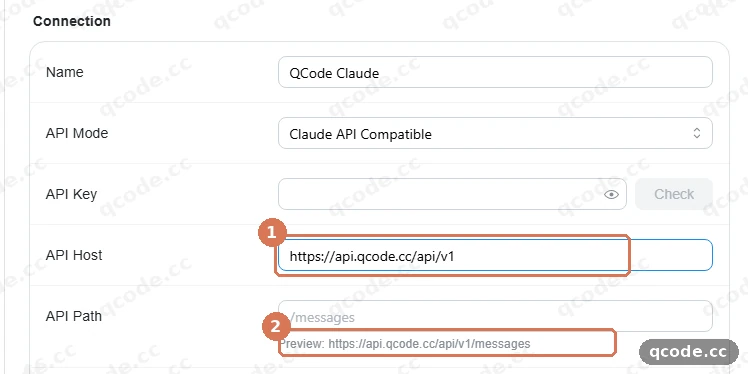
Claude API Compatible simply joins Host and Path and never adds /v1. Set the Host to https://api.qcode.cc/api/v1 and Preview turns into https://api.qcode.cc/api/v1/messages.
The API Host for OpenAI mode
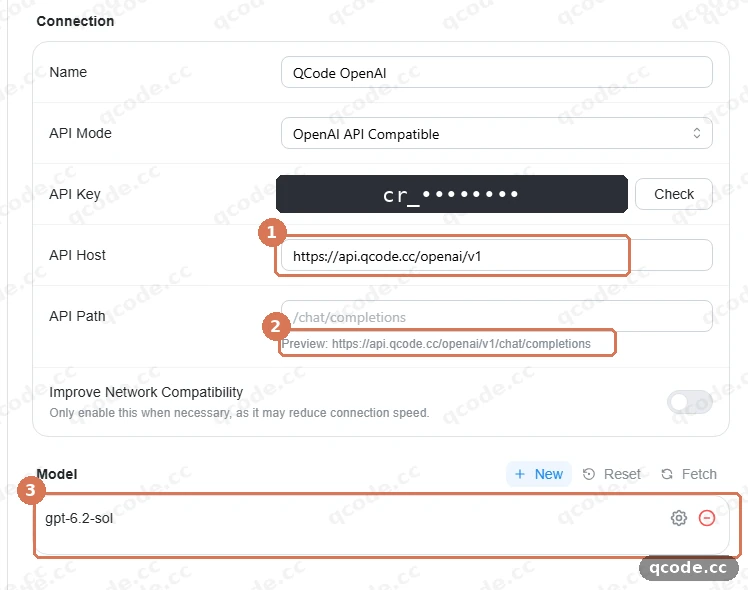
Build a second provider, OpenAI API Compatible, with the same cr_ key: API Host https://api.qcode.cc/openai/v1, Preview https://api.qcode.cc/openai/v1/chat/completions, model gpt-6.2-sol.
Type the model ID yourself
The model list is not fetched for you: click + New, open Edit Model, type claude-sonnet-5 as the Model ID and click Save. The GPT provider takes gpt-6.2-sol the same way.
QCode in Chatbox means a custom provider
Chatbox is a desktop chat client; to connect QCode you add a custom provider under Model Provider in Settings. Click + Add at the bottom of the list to open the provider directory, type custom in the search box, choose Add Custom Provider, then fill in Name and API Mode. The API Mode dropdown offers four options exactly as listed: OpenAI API Compatible (GPT and Chinese models), OpenAI Responses API Compatible, Claude API Compatible (Claude models; pick this for QCode's Claude endpoint) and Google Gemini API Compatible.
Claude models only travel over QCode's Anthropic-protocol endpoint, so Claude models belong in Claude API Compatible and GPT belongs in OpenAI API Compatible, both sharing one cr_ key.
Version and connectivity checked on 2026-11-22
The build installed on Windows 11 on 2026-11-22 came from the official English download page: the Windows row under Desktop App says 64-bit, Download puts Chatbox-1.24.6-Setup.exe (about 230 MiB) into Downloads. The Downloads list on GitHub Releases also carries Windows (x64), but the Latest release there is v1.24.4, older than the official installer. On the same day both providers passed Check: claude-sonnet-5 under Claude API Compatible and gpt-6.2-sol under OpenAI API Compatible each returned Connection successful.
Test log (2026-11-22)
The official installer asks for Only for me (user) on its first screen, then Next, with no administrator rights needed. Keep the default install location and click Install; when it finishes, leave Run Chatbox ticked and click Finish, and the app opens by itself. The installer shows no SmartScreen warning and asks for no UAC prompt.
Claude mode came up: API Path left empty, claude-sonnet-5 typed through + New, and Check returned Model Test Results with Connection successful, with Text Request, Vision Request and Tool Use Request all ticked. Back in the chat, send Say hello in one short sentence and Hello! arrives a few seconds later, with claude-sonnet-5 and tokens in small text underneath.
The QCode OpenAI provider built with the same key came up too: API Mode OpenAI API Compatible, and gpt-6.2-sol also returned Connection successful after Check. The two providers share that one cr_ key, with nothing else to configure.
What the test confirms, and three easy-to-miss points
Confirmed on Windows 11 in the English interface on 2026-11-22
- 1Version: the official installer is 1.24.6 (GitHub Latest is v1.24.4).
- 2First launch: Only for me (user), no administrator rights, Skip guide, no login.
- 3Claude: Claude API Compatible with Host
https://api.qcode.cc/api/v1. - 4Model: + New, type
claude-sonnet-5, and Check ticks all three. - 5GPT: OpenAI API Compatible with Host
https://api.qcode.cc/openai/v1and modelgpt-6.2-sol. - 6Chat: pick
claude-sonnet-5under More Providers (BYOK); the small text names tokens.
Three easy-to-miss points
- 1API Host: Chatbox's Claude type joins Host and Path exactly as typed and never adds /v1, so the Host has to be
https://api.qcode.cc/api/v1and Preview should readhttps://api.qcode.cc/api/v1/messages. - 2Welcome page: no sign-in and no account are needed, Skip guide goes straight through, and QCode needs no Chatbox account either; the address and the cr_ key live in the local settings.
- 3Second provider: the Add provider dialog remembers the Name and API Mode you typed last time, so clear the name and pick OpenAI API Compatible explicitly, or the new provider inherits the Claude mode of the previous one.
Two modes: Claude API Compatible and OpenAI API Compatible
Claude API Compatible: Claude models
Set API Mode to Claude API Compatible, API Host to https://api.qcode.cc/api/v1, leave API Path empty and Preview shows https://api.qcode.cc/api/v1/messages; type claude-sonnet-5 through + New. Claude models only travel over QCode's Anthropic-protocol endpoint, which is what this entry point speaks, so never put a Claude model in the OpenAI entry.
OpenAI API Compatible: GPT and Chinese models
Set API Mode to OpenAI API Compatible, API Host to https://api.qcode.cc/openai/v1, leave API Path empty and Preview shows https://api.qcode.cc/openai/v1/chat/completions; the model is gpt-6.2-sol. It shares the cr_ key with the Claude provider but not the address, so keep the two Hosts apart.
Ten steps from download to the first reply
- 1Open chatboxai.app/en/download, click Download on the Windows row of Desktop App, which reads 64-bit, and Downloads receives Chatbox-1.24.6-Setup.exe (about 230 MiB).
- 2Double-click the installer, choose Only for me (user) and Next with no administrator rights, keep the default location and click Install, then leave Run Chatbox ticked and click Finish.
- 3On the first-launch welcome page click Skip guide; QCode needs no sign-in and no account.
- 4Click Settings at the bottom left, choose Model Provider on the left, then click + Add at the bottom of the list.
- 5Type custom in the provider directory's search box and choose Add Custom Provider.
- 6Set Name to QCode Claude, API Mode to Claude API Compatible and click Add.
- 7Set API Host to
https://api.qcode.cc/api/v1, leave API Path empty and Preview should turn intohttps://api.qcode.cc/api/v1/messages, because the Claude type never adds /v1. - 8Paste the cr_ key copied from the dashboard into API Key; the field only shows dots.
- 9Click + New, type
claude-sonnet-5as the Model ID and click Save, then click Check, pickclaude-sonnet-5and look for Connection successful with Text Request, Vision Request and Tool Use Request ticked. - 10Start a new chat, open the model selector at the bottom right, pick
claude-sonnet-5under QCode Claude in More Providers (BYOK), send Say hello in one short sentence and the reply Hello! arrives a few seconds later, withclaude-sonnet-5and tokens in small text underneath.
The QCode side: one key, two providers
One cr_ key serves both providers: for Claude, choose Claude API Compatible and set API Host to https://api.qcode.cc/api/v1; for GPT, choose OpenAI API Compatible and set API Host to https://api.qcode.cc/openai/v1. Claude models only travel over the Anthropic-protocol endpoint https://api.qcode.cc/api, and QCode's OpenAI endpoint answers model_not_available_on_endpoint for Claude models, so never place a Claude model in the OpenAI entry. asia.qcode.cc and us.qcode.cc accept exactly the same paths and the same keys; replace api.qcode.cc in the Base URL and leave the rest alone.
Billing is per token, with current rates for each model on /models. The same key on probe.qcode.cc shows whether requests reach QCode. Not ready for a monthly plan? Pay-as-you-go Packs start at $4 for a one-time quota you use within 7 days; if you already have a Personal Plan, add a booster pack when you need more quota.
Walkthrough: connecting QCode in Chatbox
The Chatbox walkthrough in the QCode docs runs from download and install to the first reply with screenshots, and following it leaves both the Claude and the GPT provider connected. The two screenshots below show the connection settings to check: the first is the Claude mode with its API Host and Preview, the second is the OpenAI mode with its Host, Preview and model name.
Chatbox 1.24.6, tested on 2026-11-22; screenshots are in the English interface, wording changes between versions, so follow the version you have.
Common questions
What goes in API Host after choosing Claude API Compatible in Chatbox?
Use https://api.qcode.cc/api/v1, and do not drop the /v1 on the end. Chatbox's Claude type joins Host and Path exactly as typed and never adds /v1, so read Preview after typing: when it shows https://api.qcode.cc/api/v1/messages, the Host is right. Leave the API Path field empty; its grey placeholder is /messages.
Chatbox Preview is missing /v1. What should I change?
Change the API Host to https://api.qcode.cc/api/v1. Preview is assembled from the Host plus /messages, so a Host that stops at /api gives https://api.qcode.cc/api/messages, which is not QCode's Claude endpoint. Check three things: API Mode is Claude API Compatible, the API Host ends in /v1, and API Path is empty. Then click Check again; only Connection successful counts.
The model list in Chatbox is empty. Do I have to type the model ID?
Yes. The model list is not fetched for you: click + New, open Edit Model, type claude-sonnet-5 as the Model ID and click Save. The OpenAI provider takes gpt-6.2-sol the same way. The model area also has Reset and Fetch buttons; for QCode, typing the ID through + New as above is all you need.
What does a working Check look like?
It is working when Model Test Results appears and says Connection successful, with Text Request, Vision Request and Tool Use Request all ticked underneath. Run the check with claude-sonnet-5 on the Claude provider and with gpt-6.2-sol on the OpenAI provider, and only then go back to the chat.
Does Chatbox need a Chatbox account for QCode? Which welcome option should I pick?
No. The first-launch welcome page shows two cards; pick Skip guide to pass the guided setup without signing in and without an account. QCode only needs the address and the key that starts with cr_, and both live in the local settings.
I want GPT too. How do I build the second provider, and why does it open in Claude mode?
Run + Add → search custom → Add Custom Provider again with the same cr_ key, set Name to QCode OpenAI, pick OpenAI API Compatible manually, set API Host to https://api.qcode.cc/openai/v1, Preview becomes https://api.qcode.cc/openai/v1/chat/completions, type gpt-6.2-sol, and run Check once more. It opens in Claude mode because the Add provider dialog remembers the Name and API Mode from last time; clear the name and select OpenAI API Compatible explicitly, or the new provider inherits the Claude mode of the previous one.
Sources
Tested on Windows 11 in the English interface on 2026-11-22 (Chatbox 1.24.6); Chatbox official English download page (1.24.6); Chatbox GitHub Releases (Latest is v1.24.4); QCode docs Chatbox walkthrough.
One cr_ key for Claude and GPT in Chatbox
Create an account for a cr_ key, enter the API Host above in Chatbox, and call models billed per token, with rates on /models.
Related reading
Pay-as-you-go Packs: no monthly plan, valid 7 days
Buy a one-time quota valid for 7 days or add a booster pack to a Personal Plan; per-model rates are on /models.
Cherry Studio Claude API Setup in 2.2.3: Rows, Addresses and Errors (2026-11)
No type dropdown in 2.2.3: Claude takes the Anthropic row at https://api.qcode.cc/api, GPT the OpenAI row at https://api.qcode.cc/openai, one cr_ key for two providers.
Claude Code custom endpoint setup
The two environment variables, the settings.json form, apiKeyHelper, and the documented web-session limitation.
Crypto payment guide
Nine coins, 56 networks, zero platform fee for AI coding API credits.
QCode.cc is an independent API access service with no affiliation to and no endorsement from Anthropic, OpenAI or Chatbox. Chatbox's interface and wording follow chatboxai.app and its official installer, and button positions and labels can change between versions. QCode model availability and live rates follow qcode.cc/models; the points above were checked on 2026-11-22.